Claude Code · REA · Reverse engineering
How to Reverse Engineer Anything in Claude Code: my REA test, lessons and prompt tips
I gave Claude Code a compiled iPhone app with no source code and asked it to rebuild one screen twice, once without REA and once with it. Here is what each run got right, what it cost, and the prompt lines I now add every time.
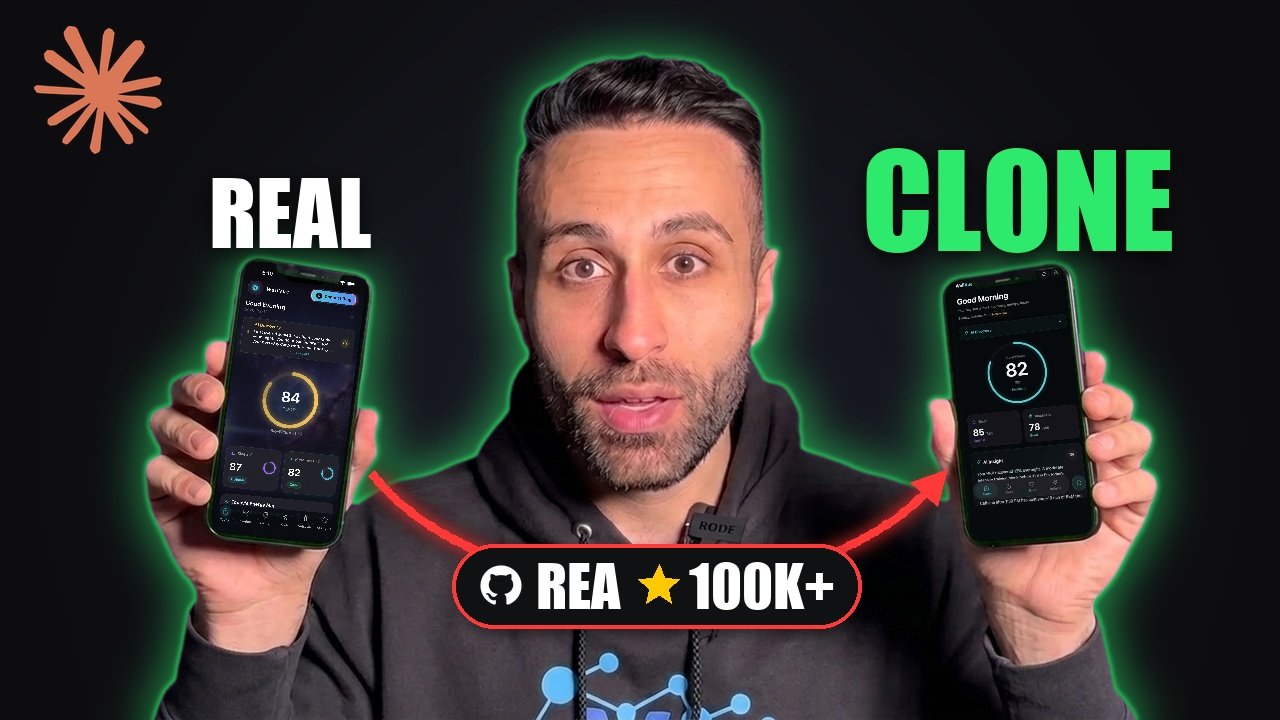
REA (Reverse Engineer Anything) is one of the fastest growing repos in GitHub history. It had about 79,000 stars when I started recording my video, more than 100,000 a day later, and about 109,000 as I write this. It is an open source MCP server and CLI that lets Claude Code look inside software you don’t have the source code for.
There are big claims flying around, so I tested it on something I am allowed to take apart: my own iPhone app. Here is everything I learned, with the exact prompts, what each run cost, and a Claude Code skill you can download.
The short version
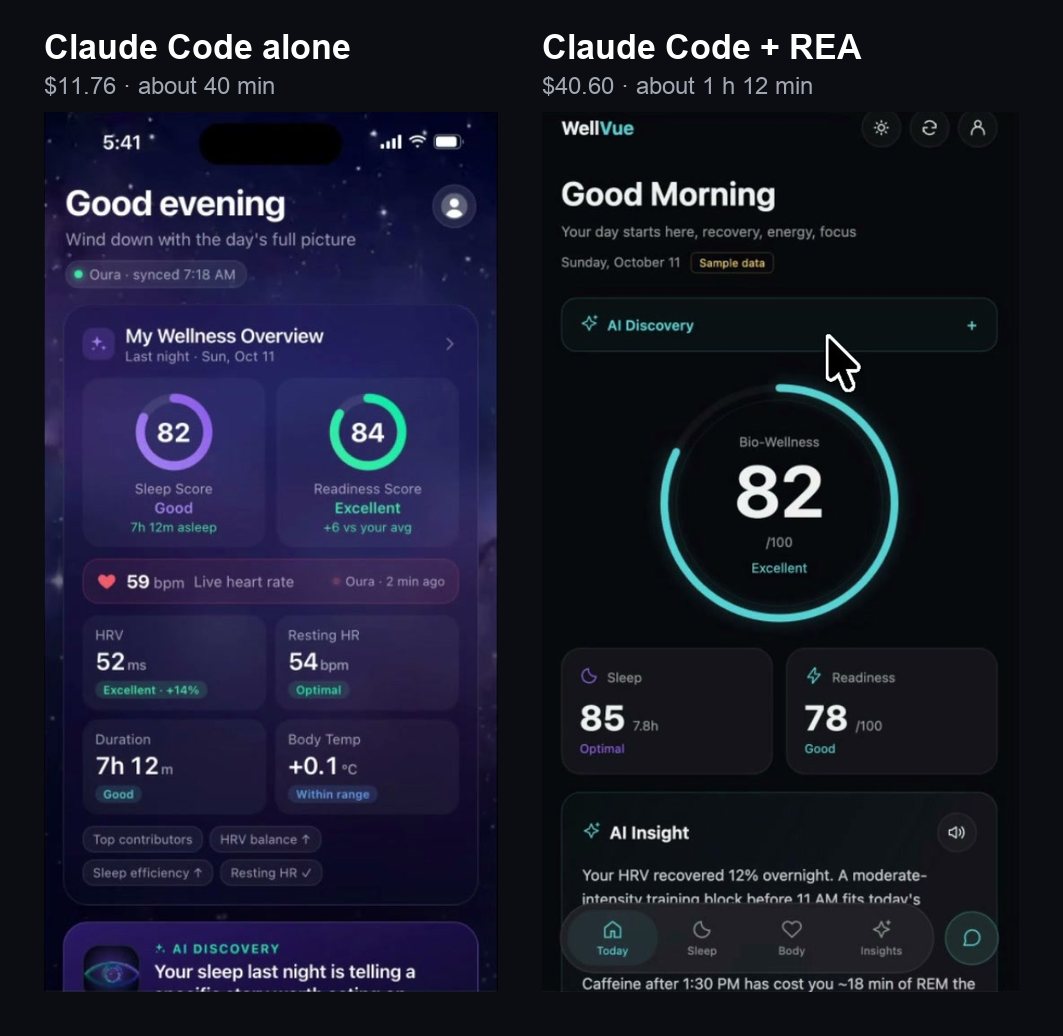
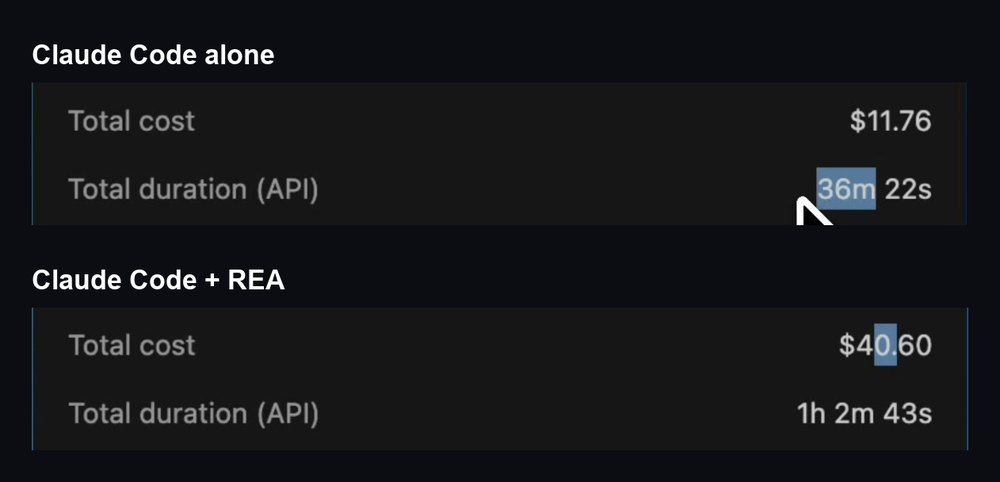
- Without REA, Claude Code took about 40 minutes and $11.76. It copied the overall look, but it got the order of the cards wrong, repeated a card and missed whole features.
- With REA, it took about 1 hour 12 minutes and $40.60, about 3.5 times the cost. It found the features and put them in the right order, but its design was less polished than the real app.
- Neither run rebuilt the animated 3D element at the top of the screen.
- The best workflow uses both: let REA clone the features, then let Claude Code check the look with its own eyes (your browser, your screen or screenshots).
- REA can’t give you the original source code. Nothing can. You get pseudocode, assembly, call paths, module maps, network activity and the evidence behind every finding, plus what is still unknown.
What REA is, in plain English
A shipped app is not source code. Names get stripped and everything gets crushed together: GitHub Desktop’s AI prompt sits 1.4 million characters into a single file. On its own, Claude Code searches blindly, burns its context and guesses.
REA fixes that. You ask Claude Code in plain English, Claude Code calls REA, REA inspects the app right on your machine and sends back findings with the evidence attached. Claude Code is no longer guessing: it traces the real thing, then explains it or builds its own version.
REA is not a decompiler itself. It drives the classic ones: Ghidra (free, from the NSA), Hopper on the Mac and IDA Pro (the pricey industry standard). They turn an app’s machine code back into assembly, map every function and who calls it, and rebuild rough C style pseudocode a person can read. Powerful, but hard to learn. REA turns them into tools Claude Code can simply call.
It handles much more than JavaScript apps: native binaries on Mac, Windows and Linux, .NET assemblies, Android apps, firmware, websites and even smart contract bytecode. It is MIT licensed and works with Claude Code, Codex, Cursor, Gemini CLI and other agents that speak MCP.
My test
- The target: the Today tab of WellVue AI, my own iPhone app, which is on the App Store. Claude Code got only the compiled app, never the source code. I picked my own app on purpose: taking apart someone else’s closed source app on camera raises legal questions.
- Two sessions side by side: the same model (Claude Opus 5.5 with the 1M context window at Max effort, through Google Vertex AI), the same prompt, started at the same time. One was told to use REA, the other was told never to use it.
- The scope: only the Today tab, rebuilt as one HTML file with simulated data. One tab is enough to compare, and it keeps the cost down.
The prompts I used
To install REA, I pasted its GitHub link into Claude Code (typos fixed):
install this plugin so Claude Code can use it: https://github.com/morluto/rea
Then the same prompt went into both sessions:
in ~/Desktop/wellvue-rea-demo/WellVue.app.
This folder has a compiled iOS app (WellVue.app), no source code. Reverse engineer ONLY its Today tab: ignore login, onboarding, settings and every other tab. Work out the layout, cards, labels, colors and what data each card shows. Then rebuild just the Today tab as one HTML file at iPhone size (393×852) with realistic simulated data, so I can show it next to the real app. For each part, tell me where in the binary you found it. Don't open anything outside this folder.
Each session got one extra line at the end:
With REA:     Use the REA plugin you installed.
Without REA:  Never ever use REA or any reverse engineer plugin if it is installed.
The results
| Claude Code alone | Claude Code + REA | |
|---|---|---|
| Time | about 40 minutes (36 minutes of API time) | about 1 hour 12 minutes (1 hour 3 minutes of API time) |
| Cost | $11.76 | $40.60 |
| Order of the cards | wrong: the wellness overview moved to the top | right |
| Repeated cards | Wellness Age showed up twice | none |
| Features | missed the chronotype, the recommendations, the streaks and the sleep, HRV and readiness cards | found the AI insights, habit reminders, chronotype, energy map, caffeine window, sleep and streaks |
| Look | tried hard to copy the design, even the background, but still looked different | same colors as the real app, but less polished |
| Animated 3D element | missing | missing |
Claude Code alone went for the surface. It even imitated my background design, though not closely. But it moved the wellness overview to the top instead of following my order, showed the Wellness Age card twice, and dropped the chronotype card, the recommendations, the streaks and the sleep, HRV and readiness cards. When I clicked one of its cards, nothing happened. The run also had a lot of hiccups, including steps that were blocked by a policy check.
Claude Code with REA got the structure right: the cards in the correct order, no repeats, and the features the other run missed, from the habit reminders to the chronotype card and the streaks. Its sleep card looked very close to mine, and the colors matched. Where it fell short was the look: the chronotype card was styled differently, and the energy map was not as beautiful as the real one.
Neither run rebuilt the animated 3D element at the top of my Today tab, which took me a long time to build. My guess is that it is more of a visual thing than a functional one, so there is less for the tools to find.
What I learned
- REA is for features. Claude Code alone copies the surface. REA found what the screen does and where each part lives in the binary. Claude Code alone made something that looked right at first glance and was wrong underneath.
- REA costs more. About 3.5 times the money and almost twice the time in my test. Keep the scope small: one screen or one feature at a time.
- Name what is drawn live. Both runs skipped the animated 3D element. If your target has animations, 3D or custom drawing, say so in the prompt and ask for a rebuild or a reason it could not.
- Combine REA with Claude Code’s own eyes. This is the big one. Let REA clone the features, then have Claude Code look at the real app through your browser, your screen or screenshots, and fix the layout, spacing, fonts and colors until they match.
- Ask for evidence. “For each part, tell me where in the binary you found it” turns guesses into findings you can check. REA also tells you what it still doesn’t know.
- It can’t recover the original source code. Expect pseudocode, assembly, call paths and evidence, and then a rebuild by Claude Code.
Prompt lines to add when you use REA
Copy any of these into your prompt. Each one comes from something that went wrong or right in my test.
Get the features first:
Use REA to find every section, label, color and piece of data on this screen, in order from top to bottom. For each part, tell me where in the binary you found it, and list what is still unknown instead of guessing.
Keep the structure:
Keep the exact order of the sections from top to bottom, never repeat a section, and make every button and tab respond, even with simulated data.
Catch what is drawn live:
List anything animated, 3D or custom drawn on this screen. Rebuild each one, or tell me why you could not.
Then match the look (the secret sauce):
Now check the look with your own eyes. You have my browser, my screen and screenshots of the real app. Put your build next to the real screen, compare them section by section (layout, spacing, fonts, sizes, colors, icons, background) and keep fixing until they match. Then list what is still different.
Stay inside the target:
Don't open anything outside this folder.
All of it in one prompt
In <folder> there is a compiled app (<app name>), no source code. Reverse engineer ONLY its <screen>: ignore login, onboarding, settings and every other screen.

1. Features (use REA): work out the layout, sections, labels, colors and what data each section shows, in order from top to bottom. For each part, tell me where in the binary you found it, and list what is still unknown.
2. Build: rebuild just that screen as one HTML file at phone size (393×852) with realistic simulated data. Keep the exact order, never repeat a section, and make every button respond. List anything animated or 3D and rebuild it, or tell me why you could not.
3. Look: you have my browser, my screen and screenshots of the real app. Compare your build with the real screen section by section and keep fixing the layout, spacing, fonts and colors until they match. Then list what is still different.

Don't open anything outside this folder.
Download the skill
I turned this workflow into a Claude Code skill, so you don’t have to paste the prompt every time. It walks Claude Code through the same steps (features with REA, the build, then the look) and checks the legal side first.
To install it, unzip it into ~/.claude/skills/ (for all your projects) or into .claude/skills/ inside one project, restart Claude Code, then ask:
Use the rea-clone skill to rebuild the <screen> of the app in this folder.
How to set up REA
- Check Node.js first. REA needs version 22.19 or newer, 24.11 or newer, or 26 and up (
node -v). - The easy way is what I did: paste the GitHub link into Claude Code and ask it to install REA. The manual way is one command,
npx rea-agents setup: pick your agents, review the plan and approve it. It backs up your configuration, adds the MCP server and the investigation skill, and then you restart your agent. - Native apps need Hopper, Ghidra or IDA (setup can install Hopper with your approval). JavaScript and .NET analysis need none of them.
- Update often, because REA moves fast:
npx rea-agents@latest setup.
The REA guides walk through native apps, JavaScript and Electron apps, and websites.
Use it responsibly
- Only reverse engineer software you are allowed to analyze: your own apps, open source, or targets you are authorized to test. Laws differ by country, and this is not legal advice.
- When REA runs an app, it runs with your permissions, so keep your approvals on.
- The analysis runs on your machine, but your agent sends the results to its model provider.
- If you record or share your screen, do one run off camera first: findings can include API endpoints, prompts or keys.
Links
- REA on GitHub, the REA website and the REA guides
- My video: How to Reverse Engineer Anything in Claude Code
- WellVue AI, the app I cloned
- MG AI School, my free community with the resources from every video